SamFW Tool Free Download
SamFW Tool has become an essential utility for Samsung users and technicians worldwide, offering advanced features such as FRP removal, Samsung account bypass, ADB activation, and firmware flashing. However, like any tool, users may encounter a variety of problems that interrupt its proper functioning. Below, we provide a comprehensive troubleshooting guide to the most common issues with the SamFW Tool and detailed solutions to resolve them efficiently.
1. SamFW Tool Not Opening or Crashing on Launch
Problem Overview:
Many users report that the SamFW Tool fails to start after installation, or crashes immediately upon launch.
 You can find the step-by-step fix here:
How to Fix No Internet Connection Problem in SamFW Tool – 100% Working
Possible Causes:
- Missing .NET Framework
- Outdated Windows OS
- Antivirus or Windows Defender interference
- Corrupted installation files
Solution:
- Install .NET Framework 4.8 or later from Microsoft’s official site.
- Make sure your Windows is up to date (especially Windows 10 or later).
- Disable antivirus temporarily and whitelist the SamFW Tool in Windows Defender settings.
- Perform a clean reinstall: Uninstall the tool, delete remaining folders, then download the latest version from the official website.
2. “ADB Device Not Found” Error
Problem Overview:
This error appears when trying to use ADB-related functions such as Factory Reset Protection (FRP) bypass, but the device isn’t recognized.
Possible Causes:
- USB debugging is not enabled on the device.
- Faulty USB cable or port.
- Missing ADB drivers.
Solution:
- On your Samsung phone, go to Developer Options and enable USB Debugging.
- Use a high-quality original USB cable and try connecting via a different USB port.
- Install or update Samsung USB and ADB drivers.
- Run via command prompt to check if the device is recognized.
3. “No Internet Connection” Inside the Tool
Problem Overview:
The tool shows a “No Internet Connection” message despite the system being connected.
Possible Causes:
- The tool’s access is blocked by firewall.
- DNS resolution issues.
- Software updates or server-side issues.
Solution:
- Allow SamFW Tool through your firewall settings.
- Flush DNS cache: Open Command Prompt as Admin and type: bashCopyEdit
- Try switching your network or use a VPN.
- Check if a new version is available, as older versions may lose compatibility.
4. FRP Bypass Not Working or Stuck on Samsung Browser Page
Problem Overview:
Users get stuck after launching Emergency Dial > #0# and the tool fails to continue the FRP process.
Possible Causes:
- Samsung patched the method in newer firmware.
- USB debugging or MTP mode is disabled.
- Phone is not properly detected by PC.
Solution:
- Ensure the phone is on a supported Android version (Android 9–13 works best).
- Restart phone and connect again in MTP + Debugging mode.
- Use the tool’s ADB Method if #0# does not work.
- Consider using the Alliance Shield X method as a backup FRP solution.
5. SamFW Tool “Index Out of Range” or Script Errors
Problem Overview:
Upon execution, some users encounter “Unhandled exception” or “Index was outside the bounds of the array” errors.
Possible Causes:
- Corrupted tool files
- Compatibility issues with OS
- Incomplete update or session
Solution:
- Always extract the zip file completely before opening the tool.
- Run the tool as administrator.
- Perform a fresh download from the official site to ensure file integrity.
- If the problem persists, try running in Windows 7/8 compatibility mode.
6. SamFW Tool Not Detecting Samsung Device
Problem Overview:
Device is not listed in the SamFW Tool even after connection.
Possible Causes:
- USB debugging is off.
- Drivers are not installed.
- Device not in the correct mode (e.g., MTP or Download Mode).
Solution:
- Check that your phone is in MTP mode.
- Install the latest Samsung USB drivers.
- Try switching USB cables and ports.
- Ensure Developer Options > USB Debugging is turned on.
7. Error While Flashing Firmware Using SamFW Tool
Problem Overview:
Users get stuck during firmware flashing, with errors like “Failed”, “Stuck at 0%”, or “Reboot Loop”.
Possible Causes:
- Incorrect firmware version
- Incompatible binary or region
- Device not in proper mode
Solution:
- Ensure the firmware matches your device model and CSC code.
- Boot your Samsung device into Download Mode: mathematicaCopyEdit
- Reinstall SamFW Tool and try flashing again.
- Use official firmware from SamMobile or Frija tool to ensure reliability.
8. Tool Automatically Closes After Start
Problem Overview:
Some users report that the tool instantly closes upon launch without any error message.
Possible Causes:
- Windows Defender or Antivirus flags it as malware.
- Missing required system files.
- Corrupted settings from a previous session.
Solution:
- Add an exception in your antivirus or Defender settings for the SamFW Tool folder.
- Delete the tool’s configuration folder located in: pgsqlCopyEdit
- Download a fresh copy and extract again.
9. SamFW Tool Stuck on “Waiting for Device”
Problem Overview:
The process halts with a “Waiting for device…” message indefinitely.
Possible Causes:
- Device not recognized by PC
- USB Debugging not active
- ADB service not started
Solution:
- Ensure USB Debugging is enabled on your device.
- Restart both your device and PC.
- Go to task manager, end any “adb.exe” task, and reopen the tool.
- Open CMD and type: pgsqlCopyEdit Then reconnect the phone.
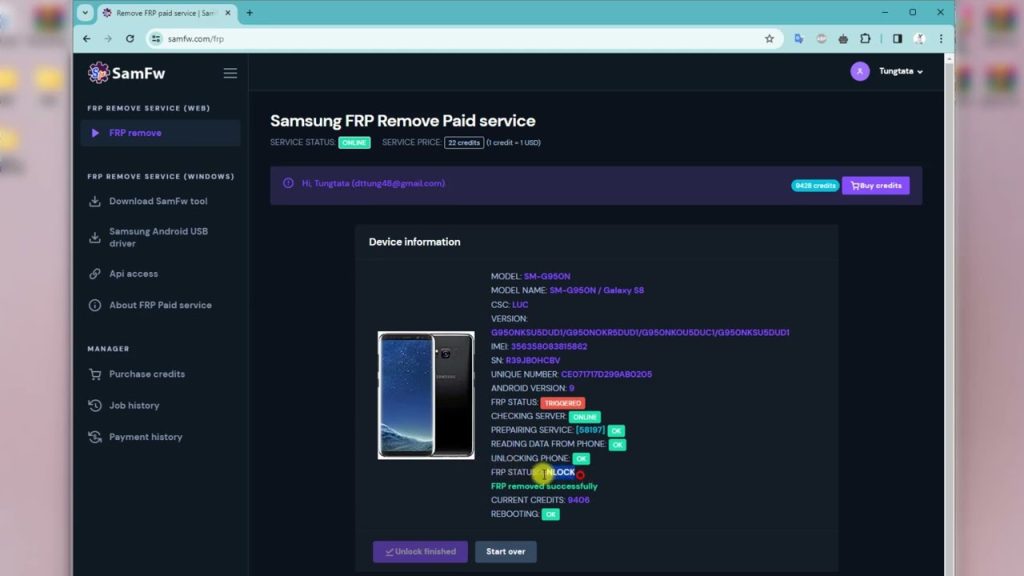
10. SamFW Tool Update Not Working
Problem Overview:
The tool fails to update to the latest version or crashes during update.
Possible Causes:
- Server connection issue
- Permission errors
- Corrupt updater files
Solution:
- Visit the official site to manually download the latest version.
- Uninstall the older version completely.
- Run the update or setup as administrator.
Final Thoughts
The SamFW Tool is a powerful and essential utility for Samsung phone management and unlocking tasks. However, encountering bugs and errors is common due to frequent device updates, firmware changes, and PC compatibility issues. By following the solutions outlined above, users can confidently troubleshoot and restore the tool’s full functionality.
If you’re working regularly with Samsung devices, it is also helpful to regularly check for new updates to the SamFW Tool and always back up your data before performing advanced operations.